
Table of Contents

Key Takeaway:

  • Kiosks reduce front-desk workload by letting patients check in, update details, and pay at arrival.
  • They improve accuracy by sending patient data directly into EHR systems in real time.
  • Success depends on QR-based check-in, live insurance checks, and strong system integration.

Every minute your front desk spends on paperwork is a minute a patient spends waiting. According to AMN Healthcare, the average wait time for a new patient appointment in the U.S. has reached 31 days — up 19% since 2022 and 48% since 2004. That is not just frustrating for patients. It is a direct drain on your practice’s revenue, staff capacity, and reputation. 

Here is the good news: a patient check in kiosk solves a large chunk of this problem right at the front door. 

This guide covers everything — what these systems are, how they work, what they cost, and how to roll one out without disrupting your entire operation. Whether you run a small private practice or a multi-location hospital network, this is your one-stop resource for making a smart decision about kiosk-based intake. 

Let’s get into it. 

1. Breaking Down the Patient Check-In Kiosk: What It Is and Why It Matters

A Plain-English Definition

patient check in kiosk is a self-service terminal, either a touchscreen tablet, wall-mounted unit, or standalone station, that lets patients handle their own registration when they arrive at a clinic, hospital, or medical office. Instead of waiting in line at the front desk, patients walk up, tap a few screens, confirm their details, and they are checked in. Simple. Fast. Done. 

Think of it like the self-checkout lane at a grocery store — except instead of scanning cereal, patients are verifying insurance, signing consent forms, and updating their contact info. A patient intake kiosk does in minutes what used to take a stack of paper forms and two staff members to process. 

Common Types of Patient Check-In Kiosks

Infographic detailing four types of patient check-in kiosks: Freestanding, Wall-Mounted, Tablet-Based, and Mobile/BYOD. Each type lists its best use and features.

Different healthcare practices have different needs. The right kiosk depends on available space, patient traffic, and how check-in is managed.

Type Best For
Freestanding Kiosk Hospitals and busy clinics
Wall-Mounted Kiosk Small clinics with limited space
Tablet-Based Kiosk Flexible check-in areas
Mobile/BYOD Check-In Contactless check-in using smartphones

Freestanding kiosks are often used in hospitals and large clinics. They are easy for patients to find and work well in busy waiting areas. 

Wall-mounted kiosks help smaller clinics make better use of their available space. They support patient check-in without taking up additional space in waiting areas.  

Tablet-based kiosks are easy to move and set up. They can be located at key points throughout the office to help patients check in quickly.  

Mobile or BYOD (Bring Your Own Device) check-in lets patients use their own phones to complete registration and check in before arriving. This reduces busy lines and allows patients to check in with less direct contact. 

Many practices now offer both kiosk and mobile check-in. This gives patients more choices while helping staff manage patient flow more efficiently. 

How Kiosk Check-in Fits into a Healthcare Setting

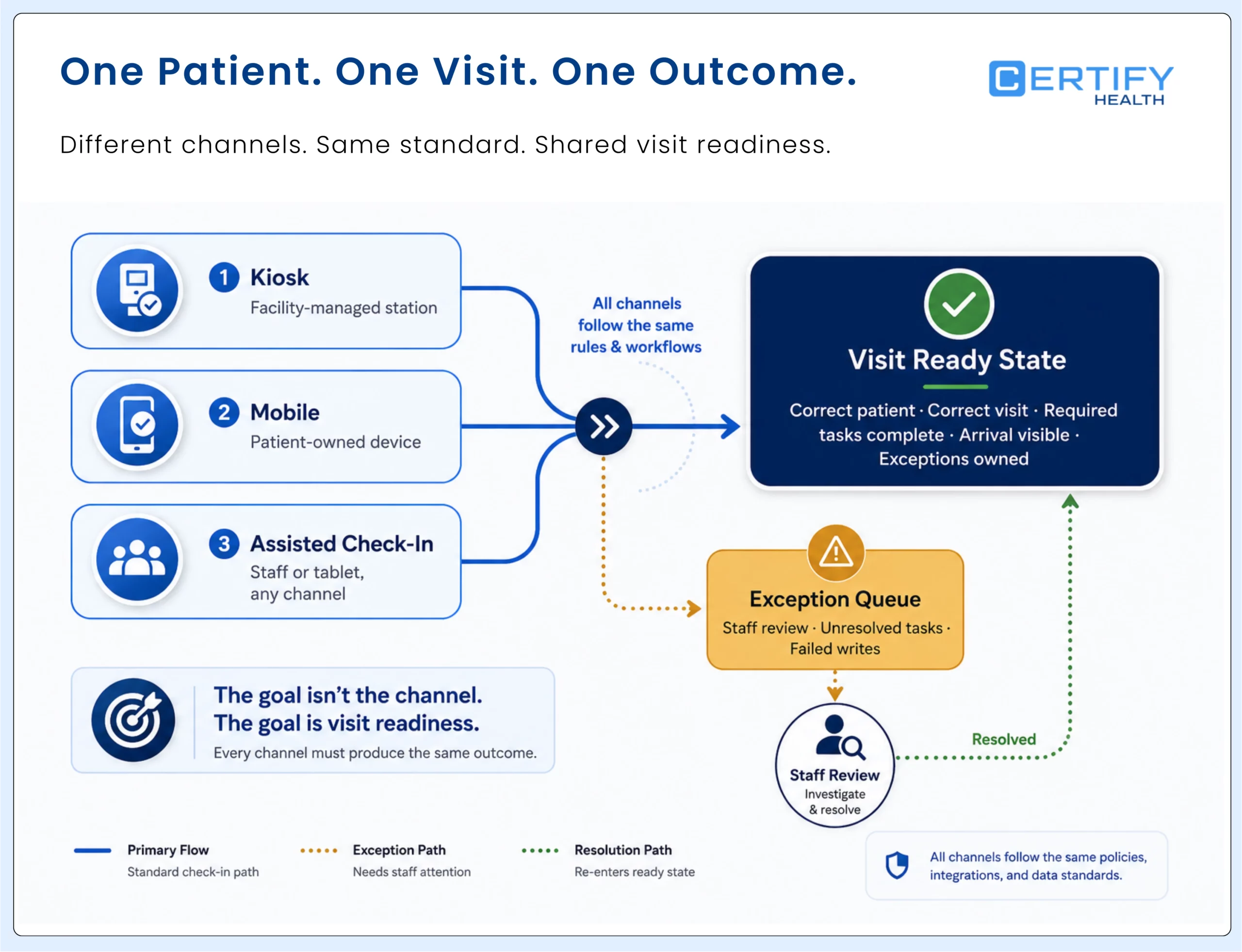
A healthcare kiosk does not replace your front desk team. It frees them up to do work that actually requires a human — answering clinical questions, handling exceptions, supporting elderly patients who need extra help. 

The kiosk handles the repetitive, time-consuming steps: collecting demographic data, verifying insurance, processing co-pays, and pushing all of that information directly into your Electronic Health Record (EHR) system. Staff get notified when a patient has arrived. Patients get a confirmation and an estimated wait time. Everyone wins. 

Where It Sits in the Patient Journey

Infographic titled "Where the Kiosk Sits in the Patient Journey" with six steps: Appointment Booked, Reminder Sent, Patient Arrives, Clinical Care, Discharge, and Follow-Up. Highlights the kiosk's role in verifying information and ensuring a smooth check-in to enhance patient experience.

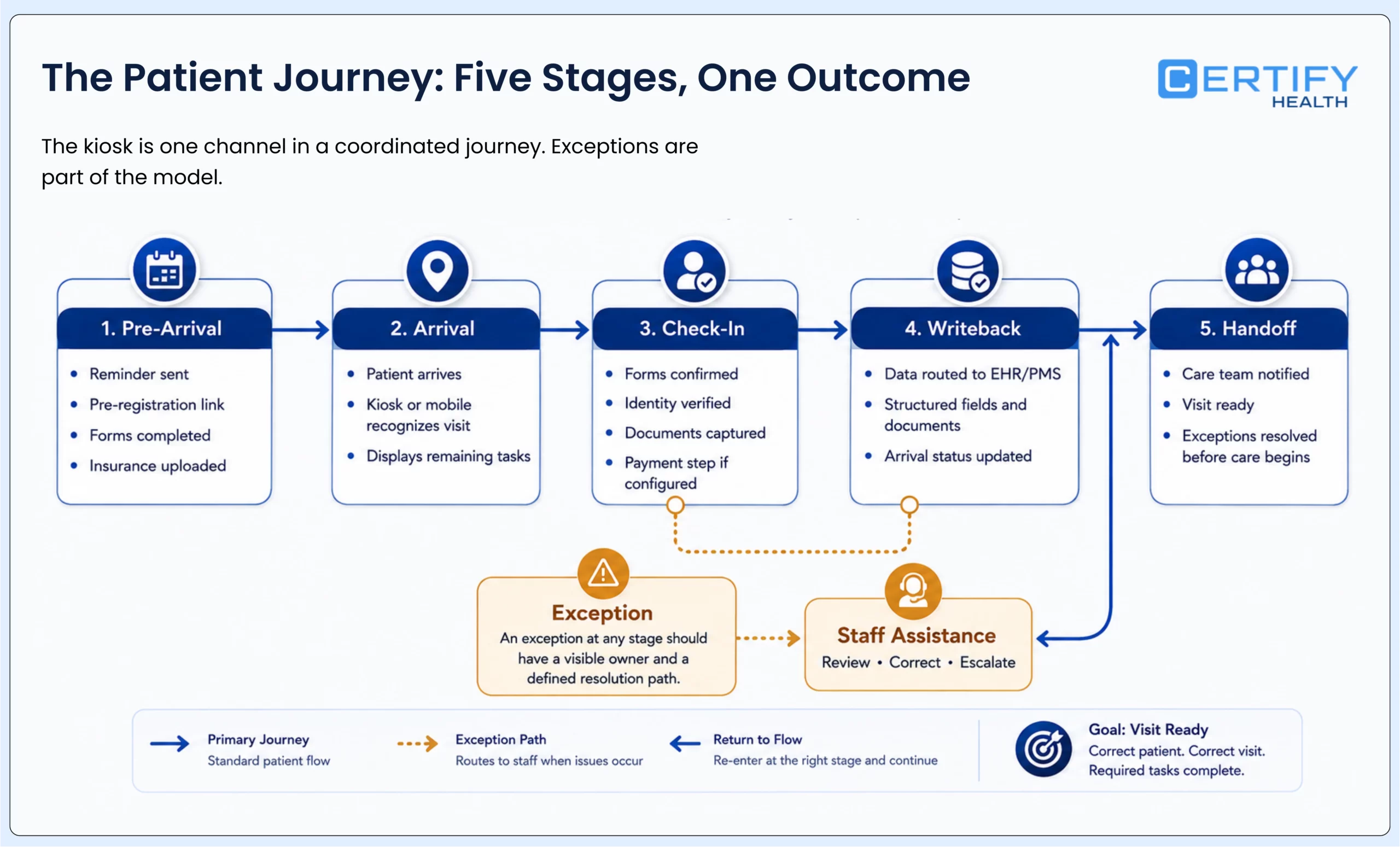
Most patients move through a journey that looks like this:

Patient Journey Flow

Patient Flow
Appointment Booked
Reminder Sent
Patient Arrives
Patient Check-In
Clinical Care
Discharge
Follow-Up

The kiosk sits squarely in that third step — the moment patients walk through your door. It is the first touchpoint your practice controls in person. A clunky, slow process here sets a bad tone for everything that follows. A smooth, fast check-in? That sets a confident, professional tone before the patient even sees a provider. 

2. The Front Desk Problem Nobody Talks About (And How a Kiosk Solves It)

Infographic titled "The Front Desk Problem Nobody Talks About" by Certify Health, highlighting that front desk teams are overwhelmed with tasks like calls and paperwork. It explains how kiosks can help streamline processes like verifying insurance, updating patient info, and collecting payments. The infographic emphasizes the shift towards self-service in various sectors, including healthcare, and suggests a medical check-in kiosk reduces wait times.

The Hidden Pressure on Your Front Desk Team 

Your front desk staff are not slacking. They are buried. On a typical clinic morning, a single front desk employee might handle phone calls, verify insurance for six patients, enter the same demographic data for the third time this week because the system did not save it right, collect a co-pay, print paperwork, answer a question about parking, and explain to a confused patient why their appointment was moved. 

That is not a staffing problem. That is a workflow problem. 

A patient check in kiosk for healthcare removes the most repetitive parts of this workload and automates them. Staff get accurate, complete data delivered to their screen before they even greet the patient. 

Patients Now Expect Self-Service Options 

Your patients are not waiting in line at the bank anymore. They check in for flights on their phones. They order food at a screen. They expect options in healthcare. 

A U.Sstudy published in the Journal of Emergency Medicine found that emergency departments using self-check-in kiosks experienced 56.8% shorter patient wait times compared to those without kiosk services. 

Digital Intake Is Now a Competitive Advantage 

If the clinic down the road offers contactless patient check in and yours still uses clipboards, that gap matters. Patient reviews increasingly mention the check-in experience. Word of mouth travels fast. And for elective procedures or specialist visits where patients have a choice, convenience drives decisions. 

A medical check in kiosk is no longer a flashy tech investment. It is table stakes for a practice that wants to grow. 

3. From Walk-In to Waiting Room — How the Entire Check-In Process Works

Flowchart titled "From Walk-In to Waiting Room" illustrates the patient check-in process. It highlights steps like digital registration, eligibility verification, co-pay collection, queue management, system integration, patient notifications, and accessibility support. The chart emphasizes benefits like faster check-ins, improved patient flow, and reduced workload.

Step 1: Patient Identification and Appointment Verification

When a patient walks up to a patient check in kiosk, the first step is identity. They can enter their name and date of birth, scan a QR code from their appointment reminder email, scan a government-issued ID, or type in their appointment confirmation number. 

The kiosk then pulls the appointment details from your scheduling system in real time. No manual lookup. No phone tag. The information is already there. 

Pro Tip:  

CERTIFY Health lets patients check in by scanning a QR code from their appointment reminder. This brings up their visit details right away, so they don’t need to search or type anything at the kiosk. 

See QR-Based Check-In in Action 

Step 2: Digital Registration and Information Updates

This is where the kiosk earns its keep. Patients review and update their: 

  • Demographics — address, phone, emergency contacts 
  • Insurance details — primary and secondary coverage 
  • Consent forms — signed digitally, stored automatically 
  • Medical history updates — flagged changes pushed to the care team 

All of this replaces the paper clipboard. And because the data goes directly into your system, there is no rekeying, no misread handwriting, and no lost forms. 

Digital patient registration this way is faster for patients and more accurate for staff. A typical paper-based registration takes 8–12 minutes. Kiosk-based registration averages 23 minutes. That is the real power of self service patient check in — patients move through the process at their own pace, without pressure, and the data lands clean in your system. 

Pro Tip:  

CERTIFY Health pre-loads intake forms at the kiosk. Patients can update their personal details, insurance, and medical history in one simple flow instead of filling out paper forms. 

Simplify Registration for Every Patient 

Step 3: Insurance and Eligibility Checks

This step alone justifies the investment for many practices. A patient registration kiosk with real-time insurance verification checks the patient’s eligibility the moment they check in — not when the claim gets denied three weeks later. 

If there is a coverage issue, the kiosk flags it immediately. Staff are alerted. The patient can be addressed before they see the provider, not after. This dramatically reduces claim rejections and billing headaches downstream. 

Pro Tip:  

CERTIFY Health runs real-time insurance checks during check-in. If there is a problem with coverage, it is shown right away so staff can fix it before the visit. 

See How Real-Time Eligibility Verification Works 

Step 4: Co-Pay Collection and Payment Processing

The kiosk handles co-pay collection on the spot — credit card, debit card, HSA/FSA. Receipts are sent digitally. Payment confirmations are logged. No awkward conversations at the front desk. No cash handling. 

For practices struggling with point-of-service collection rates, this single feature often delivers the fastest and most measurable return on investment. 

Pro Tip:  

CERTIFY Health includes payment options in the kiosk. Patients can pay their co-pay on the same screen and get a digital receipt automatically. 

Increase Point-of-Service Collections Today 

Step 5: Queue Management and Patient Routing

Once check-in is complete, the kiosk assigns the patient to the right queue and notifies the appropriate staff member or department. A hospital check in kiosk in a multi-department facility can route patients to the correct floor, waiting area, or clinical team — automatically. This is where queue management for hospitals becomes a visible, patient-facing benefit, not just a back-office operational tool. 

This is where a solid patient flow management system integration matters. The kiosk is not just collecting data. It is actively managing patient movement through your facility. 

Pro Tip:  

CERTIFY Health can send patients to the right queue or department. This helps guide them to the correct waiting area without front-desk help. 

See Queue Management in a Live Demo 

Step 6: Real-Time Integration With Your Clinical Systems

Everything the patient enters at the kiosk syncs directly to your EHR or EMR. Appointment records update. Front-desk dashboards reflect the patient’s checked-in status. Care teams see alerts. No fax. No sticky note. No verbal handoff. 

This real-time loop is what separates a good appointment check in kiosk from a great one. Data that moves instantly means care that starts faster. 

Pro Tip:  

CERTIFY Health connects with EHR systems like Epic, Cerner, and MEDITECH. After check-in, patient details and status are updated in the system automatically. 

Explore Our EHR & PM System Integrations

Step 7: Patient Notifications and Confirmation

After check-in, the patient receives: 

  • A digital confirmation via SMS or email 
  • A token or queue number 
  • An estimated wait time 
  • Live status updates if wait times change 

This reduces the number of patients approaching the front desk to ask “How much longer?” — a small thing that adds up fast over a busy clinic day. 

Pro Tip:  

CERTIFY Health can send text messages or emails with check-in confirmation and wait-time updates. This helps patients know where they are without asking staff. 

Schedule a Personalized Walkthrough 

Step 8: Accessibility and Multilingual Support

A well-built patient self check in kiosk is designed for every patient — not just the tech-savvy ones. That means multiple language options, large-print displays, audio assistance, and touchscreen guidance that is intuitive enough for a first-time user.

Pro Tip:  

CERTIFY Health supports different languages and easy screens. It also works with accessible kiosk designs like large text and simple navigation so more patients can use it easily. 

Take a live Walkthrough Now! 

We cover accessibility in full detail in Section 6. It deserves its own space.

4. What Your Practice Actually Gains When You Go Digital

Digital benefits list for medical practices with seven items including faster check-ins, better data accuracy, and improved efficiency.

Shorter Wait Times and Better Patient Flow 

Faster check-in means faster movement. When each patient spends 2–3 minutes at a kiosk instead of 812 minutes at the desk, your waiting room clears more quickly. Appointment slots stay on track. Providers run on schedule. Staff are less stressed. 

Self service patient check in directly improves the on-time performance of your entire clinic day. 

Dramatically Better Data Accuracy 

When patients enter their own information — and verify it themselves — error rates drop. No misread handwriting. No transcription mistakes.  

Also, research published in JAMIA suggests that patient-entered information through touchscreen kiosk systems can improve the completeness of medication histories and reduce missing information compared with traditional clinical documentation. 

Digital patient registration is not just about convenience. It is about data quality. And better data quality pays dividends across your entire revenue cycle. 

Staff Work on What Actually Matters 

When the kiosk handles data entry, insurance verification, and payment collection, your front desk team can focus on patients who need real help — elderly visitors, anxious first-timers, patients with complex insurance situations. Human attention goes where it is actually needed. 

Practices that deploy these self-service systems often find they do not need to hire additional staff to handle patient volume growth. The kiosk scales with you. 

Better Engagement and Cleaner Communication 

When patients have already reviewed and confirmed their information before they reach the clinical team, visits start with a cleaner handoff. Providers spend less time on data gathering. Patients feel more prepared. The clinical relationship starts on a better foot. 

A digital patient check in system also enables pre-visit questionnaires — symptom checks, medication updates, reason for visit notes — that arrive with the patient’s chart before they even sit down. 

Real Cost Savings 

The math is straightforward: 

  • One front desk FTE costs approximately $35,000–$45,000 annually in total compensation.  
  • Kiosk systems typically cost $10,000–$30,000 to deploy, with significantly lower ongoing maintenance costs.  
  • Many organizations use kiosks to reduce administrative overhead, improve staff efficiency, and support higher patient volumes without proportionally increasing labor costs. 

Security and Compliance You Can Count On 

A kiosk system built for healthcare handles data under HIPAA-compliant protocols. Patient information is encrypted. Access is controlled. Consent forms are stored with audit trails. Compliance documentation is automatic — not a manual chore. 

Faster, Fairer Payment Collection 

When co-pays are collected at check-in, collection rates go up — often significantly. Patients are in the building. The visit has not happened yet. They are motivated to pay and move forward. Compare that to chasing balances after the fact via paper statements. 

Kiosk vs Mobile Check-In vs Hybrid Models: Which Is Right for Your Practice? 

Approach Best For Advantages Limitations
Kiosk Walk-ins, older demographics Consistent experience Hardware cost
Mobile/BYOD Tech-savvy patients No hardware Depends on smartphone adoption
Hybrid Most practices Maximum flexibility More implementation planning

Many healthcare facilities use both self-service kiosks and mobile check-in tools. This lets patients choose whether they want to check in on their phone or use a kiosk at the office. 

How Different Healthcare Settings Use Patient Check-In Kiosks 

Patient check-in kiosks can support different types of healthcare organizations. The way they are used may vary based on patient needs and workflows. 

Healthcare Setting How Kiosks Help
Primary Care Patients can check in, update their information, and confirm insurance.
Urgent Care Patients can sign in faster when the office is busy.
Pediatrics Parents can fill out forms and check in for their children.
Behavioral Health Patients can check in privately without sharing information at the front desk.
Hospital Outpatient Patients can find the right clinic or waiting area more easily.

5. Beyond Patients — Visitor Management and Compliance Support

A blue-themed infographic titled "Beyond Patients — Visitor Management Made Easy" lists five features: Touchless Check-In, Compliance Tracking, Identity Verification, Privacy & Security, and Secure Payments. Each feature includes a brief description. The result promises safer facilities, better compliance, and smoother front-desk operations.

Many healthcare facilities handle more than just patients at the front door. Vendors, family members, contractors, and pharmaceutical reps all walk in and out. Managing all of that manually is a compliance and security risk. 

A robust healthcare kiosk check in system extends the same automated, documented process to visitors. 

Touchless Visitor Registration 

Visitors can check in via the kiosk — entering their name, purpose of visit, and the department or person they are visiting — without touching a paper log or interacting with a staff member. Contactless patient check in protocols that reduce paper handling and close-contact interactions also apply here. 

This became especially important post-2020, and the expectation has not gone away. 

Integrated Compliance Tracking 

Every visitor check-in creates a time-stamped, logged record. Who came in, when, where they went, and when they left. This supports Joint Commission requirements, infection control protocols, and internal security policies. 

Identity Verification and Audit Trails 

For facilities with access-controlled areas, kiosks can require ID scanning or badge printing before granting access. This is especially relevant for pediatric units, surgical centers, and psychiatric facilities where visitor access carries regulatory weight. 

Privacy and Data Protection 

Visitor data collected at the kiosk is stored securely, separate from patient records, and accessible only to authorized staff. Clear privacy notices at the kiosk satisfy regulatory disclosure requirements without relying on staff to remember to mention them. 

Payment Security and PCI-DSS Compliance 

Many patient check-in kiosks let patients pay co-pays during check-in. This helps everyone move through check-in more quickly. A good kiosk also keeps payment information secure and supports PCI-DSS compliance. This helps patients trust the process and makes payment collection more reliable.

6. Designing for Every Patient — Accessibility Standards Every Kiosk Must Meet

A patient check in kiosk that works for 80% of your patients and fails the other 20% is not a success. Accessibility is not a checkbox — it is a clinical and legal obligation. 

Screen Height and Physical Reach 

ADA accessibility guidelines generally require interactive kiosk controls and operable elements to be reachable from a seated position — typically within a 15-to-48-inch reach range from the floor. This is important for wheelchair users, patients with limited mobility, and individuals of varying heights. Adjustable-height kiosk stands can help organizations improve accessibility compliance and usability. 

Visual, Hearing, and Mobility Accessibility 

Good accessibility design includes: 

  • High-contrast display options for patients with low vision 
  • Large, readable fonts — minimum 18pt for body text 
  • Voice-enabled reading feature for visually impaired patients 
  • Simplified navigation — no more than 3–4 taps to complete check-in 
  • Physical keyboard or stylus support for patients with limited fine motor control 

Hygiene and Infection-Control Considerations 

Keeping check-in kiosks clean helps create a safer experience for patients. Many practices now offer touch-free options to reduce the need for shared screens. 

To help keep patients safe, practices can: 

  • Clean kiosk screens regularly  
  • Let patients check in by scanning a QR code  
  • Offer mobile check-in on a patient’s own phone  
  • Use screens designed to help reduce germs  

This can strengthen patient confidence while making payment collection more efficient. 

Ease of Use for Older Adults and First-Time Tech Users 

Not every patient is comfortable with touchscreens. A well-designed patient self check in kiosk does not assume comfort. It guides users step by step, with clear instructions, large buttons, and the option to call for staff assistance at any point in the process. 

Practices serving older populations should pilot their kiosks with patients in that demographic before full rollout. Real feedback is better than guessing.  

ADA-Compliant Design and Workflow Choices 

Beyond hardware, the software workflow must also be accessible. This means: 

  • No time limits that penalize slow typists 
  • Error messages that explain the problem clearly 
  • A clear path to staff-assisted check-in for patients who need it 
  • Privacy screens that protect information without blocking visibility for users with low vision 

7. Honest Talk — The Real Challenges of Rolling Out Kiosk Registration

Infographic titled "The Real Challenges of Rolling Out Kiosk Registration" with six numbered points on challenges like accessibility, integration, and privacy.

Nobody should buy one of these systems thinking it is plug-and-play with zero friction. Here’s the honest expectation. 

Accessibility and Ease of Use (Again) 

Yes, this is on the benefits list too. That is because it cuts both ways. Done well, it is a differentiator. Done poorly, it creates frustration and increases staff workload as they rescue confused patients. Invest in a well-designed system and plan for a patient education period at launch. 

Integration With Your Existing Systems 

This is the number one technical challenge. Your patient onboarding software, EHR, practice management system, and billing platform all need to talk to each other cleanly. Not all kiosk vendors have pre-built integrations with every EHR. Before you sign a contract, get specific answers: 

  • Does this integrate with our current EHR natively? 
  • What happens when data sync fails? 
  • Who manages the integration — your IT team or the vendor? 

Planning for Downtime and Connectivity Issues 

Sometimes the internet may stop working. Practices should have a backup process so patients can continue checking in smoothly. 

To prepare for this, practices can: 

  • Let patients check in even when the internet is down  
  • Save information and send it later when the internet returns  
  • Make sure Wi-Fi works well throughout the office  
  • Have staff ready to help patients check in if needed  

Having a backup process in place can help patients check in without major interruptions.  

Data Security and Patient Privacy 

More digital touchpoints mean more attack surface. A kiosk handles sensitive PHI (Protected Health Information). Secure encrypted communication, automatic inactivity logout, session clearing after every patient, and HIPAA-compliant data storage should all be in place. Vet your vendor’s security credentials carefully. Ask for their HIPAA Business Associate Agreement on day one. 

Technology Does Not Replace Human Warmth 

A patient intake kiosk is an operational tool — it is not your practice’s personality. Patients who are anxious, in pain, or confused still need a human face. Make it clear that the kiosk supports your staff instead of replacing them. Staff who are freed from data entry should be more available for human connection, not less visible. 

Upfront Costs and the Implementation Learning Curve 

Entry-level systems start around $5,000$10,000 per unit. Enterprise systems with full EHR integration, payment processing, and multi-language support run higher. Factor in: 

  • Hardware (kiosk unit, stand, peripherals) 
  • Software licensing and setup 
  • Staff training time 
  • Patient communication at launch 
  • Ongoing support and maintenance 

Plan for a small pilot first before expanding it across the entire organization.  The cost of getting it right on a small scale is far less than rolling back a failed full deployment. 

8. How to Choose Patient Check-In Kiosk Software Without Getting Burned

Guide for selecting kiosk software

The hardware is almost secondary. The software is what determines whether your check-in system actually works for your practice — or becomes an expensive lobby ornament. 

Non-Negotiable Software Features 

Before you demo anything, make sure the system offers: 

  • Real-time EHR/EMR integration (bidirectional) 
  • Live insurance eligibility verification 
  • Digital consent form collection with e-signature 
  • Co-pay collection and payment processing 
  • Multi-language support 
  • HIPAA-compliant data handling 
  • Automated patient notifications (SMS/email) 
  • Staff dashboard with real-time check-in alerts 

Integration With Your Core Systems 

Your patient registration kiosk software needs to connect cleanly to: 

  • Your EHR (Epic, Cerner, Athenahealth, eClinicalWorks, etc.) 
  • Your practice management system (PMS) 
  • Your billing and revenue cycle platform 
  • Your queue management for hospitals or clinic flow system 

An appointment check in kiosk that cannot sync in real time with your scheduling platform is just an expensive tablet stand — the integration is everything. 

Ask vendors for a live integration demo with your specific EHR. Not a promised integration — a working one. 

Customization and Workflow Flexibility 

No two practices work the same way. Your kiosk software should adapt to your workflow, not force you to adapt to its defaults. Look for: 

  • Configurable check-in steps (add or remove fields based on your needs) 
  • Custom branding (your logo, your colors) 
  • Role-based staff notifications 
  • Different workflows for new patients versus returning patients 

Reporting, Analytics, and Ongoing Support 

Good patient onboarding software gives you data — not just operations. Look for: 

  • Check-in volume reports by hour, day, provider 
  • Payment collection rates at kiosk vs. desk 
  • Average check-in completion time 
  • Patient satisfaction scores 
  • Insurance verification success and failure rates 

And when something breaks — because at some point it will — you need responsive, healthcare-literate support. Ask specifically: What is the SLA for critical downtime? Is support available during clinic hours? 

How to Evaluate Vendors Side by Side 

Create a simple scorecard. Rate each vendor on: 

  1. Integration depth with your EHR 
  2. Feature completeness 
  3. Accessibility compliance 
  4. Security certifications (HIPAA BAA, SOC 2) 
  5. Customer references from similar practice types 
  6. Implementation timeline 
  7. Total cost of ownership over 3 years 

Do not just buy from the vendor with the best sales pitch. Call their existing customers. 

Also Read: What Nobody Tells You About Choosing the Right Self-Service Kiosk for Healthcare 

CERTIFY Health: SelfService Kiosk CheckIn 

CERTIFY Health helps busy clinics with self-service check-in. Patients use a kiosk instead of waiting at the front desk. It helps reduce crowding and saves staff time. It also works with the clinic’s current EHR system. 

Faster Check-In 

Patients scan a QR code from their appointment message. They fill out forms, check insurance, and pay co-pays in a few minutes. No paper forms are needed. 

Insurance Check 

CERTIFY Health checks insurance when the patient arrives. If there is a problem, staff can see it right away. This helps avoid billing issues later. 

Works With Clinic Systems 

CERTIFY Health connects with systems like Epic, Cerner, and MEDITECH. It sends patient check-in details into the system automatically. This reduces extra typing for staff. 

Safe and Easy to Use 

CERTIFY Health keeps patient data safe. It follows HIPAA rules. The kiosk is also easy to use. It can show large text and simple screens. It also supports people who need extra help. 

Setup and Support 

CERTIFY Health helps clinics set up the system. It connects to their software and trains staff. Support is available if clinics need help. 

Practice Impact 

Front desks can get much less busy, by up to 60–80%. 

Check-in is faster. Insurance problems are found earlier. Staff spend less time on manual work. 

Clinics can see more patients without adding a lot more front desk staff. 

Take a Quick Walkthrough 

9. The Numbers Don't Lie — Calculating Your ROI Before You Invest

Before you commit, run the math. Here is a simple framework. 

Labor Savings 

Average time a front desk staff member spends per patient on manual check-in: 812 minutes Average time with a digital patient check in kiosk: 23 minutes Time saved per patient: 510 minutes 

For a practice with 50 patients per day, that is 250500 minutes of recovered staff time daily — nearly a full workday, every day. 

If that time translates to handling more calls, reducing overtime, or allowing one FTE to cover work previously split between two, the labor savings alone can offset kiosk costs in 12–18 months. 

Reduced Errors and Rework 

Each billing error costs your practice time and money. A single claim denial costs $25–$118 in rework (AAFP data). A practice with 5 denials per week saves $6,500$30,000 annually by improving data accuracy at check-in. 

Faster Payment Collection 

Practices that consistently collect co-pays at the point of service via kiosks can improve collection rates by 1525%. If your practice leaves $50,000 in annual co-pay collections on the table due to no-show billing or delayed invoicing, improving collection by even 15% returns $7,500 per year. 

Higher Patient Throughput 

When check-in is faster, appointment slots run on time. When appointments run on time, you can see more patients in a day without extending hours. For a hospital check in kiosk deployment or a high-volume outpatient facility, adding even 2–3 visits per day to a previously bottlenecked schedule adds up quickly. 

10. Your Step-by-Step Rollout Roadmap

Colorful infographic titled 'Your Step-by-Step Kiosk Check-in Rollout Roadmap' with five steps: Review, Set Metrics, Start Small, Train, Monitor.

Buying a patient check in kiosk is step one. Getting it to work well in your specific environment takes a plan. 

Step 1 — Review Your Current Intake Process 

Before you change anything, document exactly what happens today. How does a patient check in? Where are the delays? Where do errors happen most often? What complaints do patients have? What do staff wish they could stop doing? 

This audit becomes your baseline. Everything you improve gets measured against it. 

Step 2 — Define Clear Success Metrics 

What does success look like? Pick 35 measurable targets, for example: 

  • Reduce average check-in time from 10 minutes to 2–3 minutes within 90 days 
  • Increase point-of-service co-pay collection rate from 65% to 85% within 6 months 
  • Reduce insurance-related claim denials by 30% within 12 months 

Without specific targets, you cannot evaluate performance — or make the case to leadership that the investment paid off. 

Step 3 — Pilot With One Location or One Patient Population 

Do not roll out to every clinic on day one. Start with one location, one provider’s schedule, or one patient demographic. Run it for 48 weeks. Collect data. Gather staff feedback. Identify friction points. 

A healthcare kiosk check in pilot lets you fix problems cheaply before they become expensive. 

Step 4 — Train Staff and Communicate to Patients in Advance 

Staff need to understand the system before patients encounter it. Training should cover: 

  • How to override or assist a patient who gets stuck 
  • How to read the staff dashboard and act on check-in alerts 
  • How to respond when the system is not working  

Patients benefit from a heads-up too. Send an email or SMS before their appointment explaining the new check-in process. A brief “What to Expect” section on your website reduces confusion on day one. 

Step 5 — Monitor Adoption, Collect Feedback, and Optimize 

Track kiosk utilization weekly. If adoption is low, figure out why people are not using it. Are patients defaulting to the desk? Is the interface confusing? Are certain steps causing drop-offs? 

The best patient flow management system implementations are not set-and-forget. They are continuously refined based on real usage data. Review your metrics monthly for the first six months. Adjust workflows, update language options, add or remove steps as you learn what your patient population actually needs.

11. Future Trends in Patient Check-In

Patient check-in is changing as practices look for easier ways to help patients. 

Some trends include: 

  • Mobile check-in that lets patients use their own phones before they arrive  
  • Facial recognition tools that can help identify patients during check-in  
  • Biometric tools, such as fingerprint scanning, for added security  
  • Wait time updates that help patients know when they will be seen  

In the future, many practices may offer both kiosk and mobile check-in options to give patients more choice and flexibility. 

Conclusion

Here is the honest summary: a patient check in kiosk is not a solution for every practice in every situation. But for the majority of clinics, medical offices, and hospital outpatient facilities dealing with front desk bottlenecks, rising patient expectations, and administrative cost pressure — it is one of the highest-ROI operational investments available right now. 

The business case is clear: 

  • Faster check-in 
  • More accurate data 
  • Better payment collection 
  • Freed-up staff capacity 
  • Happier patients 

The technology is mature. This is not experimental. Thousands of healthcare facilities across the United States are running patient check in kiosks successfully today. Whether you need a medical check in kiosk for a single-specialty office or a patient check in kiosk for healthcare networks spanning multiple facilities, the integration options are wide. The vendors are competitive. The implementation playbooks exist. 

The patient expectation is already there. Digital self-service is not a trend. It is the default expectation for a growing share of your patient population. Meeting that expectation is not a nice-to-have — it is a retention strategy. 

If you are considering making the move, start with the audit in Section 10. Map your current workflow. Identify your biggest pain point — wait times, data errors, co-pay collection, staff overload — and find the kiosk solution most specifically designed to solve that problem first. 

The practices that win the next decade are not just the ones with the best providers. They are the ones who give patients a frictionless, respectful, efficient experience from the moment they walk through the door. 

That experience starts with check-in. And it starts with you making the decision to upgrade it. 

Ready to evaluate your options? 

Book a Demo Now!